Managing Windows Firewall Rules with PowerShell: A Comprehensive Guide

Managing Windows Firewall Rules with PowerShell: Part 2 – Overcoming Cmdlet Limitations

Image courtesy of ITPro Today
In this section, we will discuss how to extract critical firewall rule details that the standard Get-NetFirewallRule cmdlet can't provide on its own. The Get-NetFirewallRule cmdlet retrieves general-purpose metadata for Windows firewall rules, but it does not return specific details such as local port numbers, remote port numbers, or protocols.
Retrieving Local and Remote Port and Protocol
To retrieve the protocol, local port number, and remote port used by a specific firewall rule, you can use the Get-NetFirewallPortFilter cmdlet. For example, if you want to find this information for a firewall rule named "My Example Rule," use the following command:
Get-NetFirewallRule -DisplayName "My Example Rule" | Get-NetFirewallPortFilter | Select-Object Name, Protocol, LocalPort, RemotePort
This command returns the protocol, local port number, and remote port associated with the specified firewall rule.
Retrieving Addresses
To retrieve the remote address and local address for a given rule, utilize the Get-NetFirewallAddressFilter cmdlet. This can be done as follows:
Get-NetFirewallRule -DisplayName "My Example Rule" | Get-NetFirewallAddressFilter | Select-Object Name, RemoteAddress, LocalAddress
This command will return the remote address and local address for the specified firewall rule.
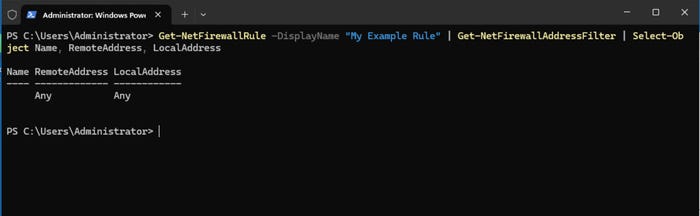
Image courtesy of ITPro Today
Producing a Consolidated Output
If you need to access all information about a firewall rule in one place, consider using a PowerShell script to consolidate the details. Here’s a sample script:
$RuleName = "My Example Rule"
$Rule = Get-NetFirewallRule -DisplayName $RuleName
$PortFilter = $Rule | Get-NetFirewallPortFilter
$AddressFilter = $Rule | Get-NetFirewallAddressFilter
$ConsolidatedInfo = [PSCustomObject]@{
    Name          = $Rule.DisplayName
    Direction     = $Rule.Direction
    Action        = $Rule.Action
    Protocol      = $PortFilter.Protocol
    LocalPort     = $PortFilter.LocalPort
    RemotePort    = $PortFilter.RemotePort
    LocalAddress  = $AddressFilter.LocalAddress
    RemoteAddress = $AddressFilter.RemoteAddress
}

Write-Host $ConsolidatedInfo
This script collects and displays all relevant information about the specified firewall rule in a single output.
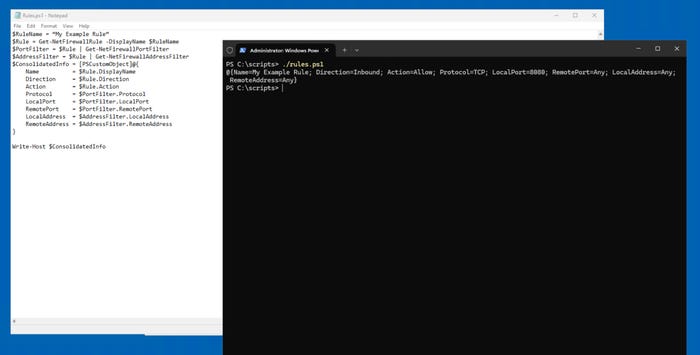
Image courtesy of ITPro Today
Managing Windows Firewall Rules with PowerShell: Part 1 – Beyond the GUI

Image courtesy of ITPro Today
PowerShell offers a more efficient way to manage Windows firewall rules compared to the GUI. For example, four primary cmdlets can be used:
- Get-NetFirewallRule: Displays firewall rules
- Set-NetFirewallRule: Edits a firewall rule
- Remove-NetFirewallRule: Deletes a firewall rule
- New-NetFirewallRule: Creates a firewall rule
For detailed command syntax and usage, refer to the Get-NetFirewallRule and New-NetFirewallRule cmdlets.
How to Create a Firewall Rule
To create a new firewall rule, you can use the following command:
New-NetFirewallRule -DisplayName "My Example Rule" -Direction Inbound -Program "C:\\Temp\\MyApp.exe" -Action Allow -Profile Domain,Private -Protocol TCP -LocalPort 8080
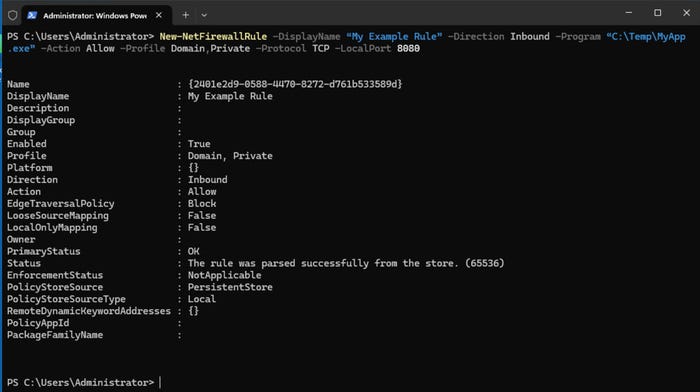
Image courtesy of ITPro Today
You can verify the creation of the rule using:
Get-NetFirewallRule -DisplayName "My Example Rule"
How to Modify a Firewall Rule
To modify an existing firewall rule, use the following command:
Set-NetFirewallRule -DisplayName "My Example Rule" -Profile Domain
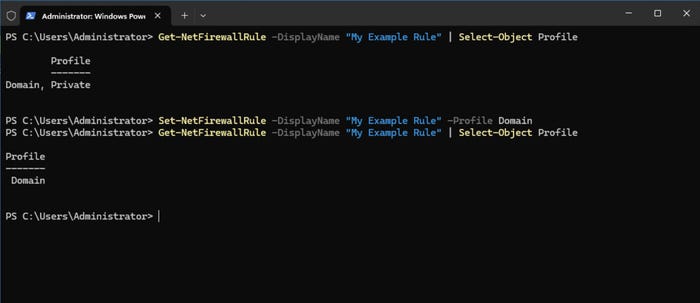
Image courtesy of ITPro Today
How to Delete a Firewall Rule
To delete a firewall rule, use the command:
Remove-NetFirewallRule -DisplayName "My Example Rule"
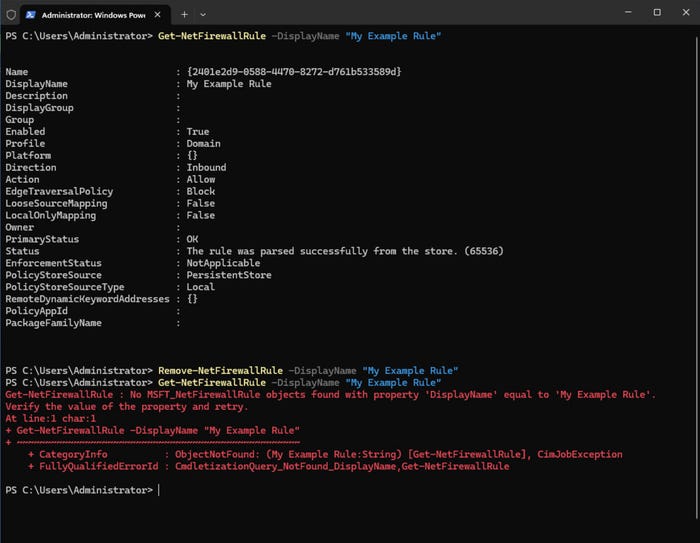
Image courtesy of ITPro Today
By utilizing these commands and techniques, you can effectively manage Windows firewall rules using PowerShell.
For more information and to explore our services, visit Gopher Security.