Bypassing EDRs: EDR-Redir V2 and Microsoft Defender Insights

TL;DR
- EDR-Redir V2 bypasses Endpoint Detection and Response (EDR) systems by utilizing bind links within the Program Files directory. This method redirects EDR folders to attacker-controlled locations, enabling potential DLL hijacking and other malicious operations. The tool has shown varying success against different EDRs, including Windows Defender, by exploiting Windows' Bind Filter and Cloud Filter drivers.
EDR-Redir V2: Bypassing EDRs with Fake Program Files
EDR-Redir V2 leverages the bind link technique within the Program Files folder to disrupt Antivirus and EDR operations. This involves creating bind links for folders that point to themselves, effectively breaking and bypassing security solutions.

The original concept was detailed in a previous article, "Using EDR-Redir To Break EDR Via Bind Link and Cloud Filter". The updated version, EDR-Redir V2, employs bind link technology in a novel manner, and the researcher can be found on X.
The Idea Behind EDR-Redir V2
Most software, including antivirus and EDR solutions, are installed in subfolders within Program Files, Program Files (x86), or ProgramData. While EDRs protect their operating folders by preventing file writes, they typically cannot block writes to their parent folders. The core idea is to create bind links so that a folder points back to itself.

The implementation steps are:
- Query all folders within Program Files.
- Create corresponding folders in a controlled location (e.g., C:\TMP\TEMPDIR).
- Create bind links from the folders in Program Files to their counterparts in C:\TMP\TEMPDIR.
- Create bind links from C:\TMP\TEMPDIR back to the corresponding folders in Program Files.
- Create a bind link from Program Files to C:\TMP\TEMPDIR to redirect the EDR's folder through TEMPDIR.
- Perform DLL hijacking by placing executable files that the EDR interacts with into TEMPDIR.
This process aims to redirect even the most robust EDRs.
Experimenting with Windows Defender
The EDR-Redir tool can be downloaded from GitHub. The experiment was conducted using Windows Defender on Windows 11, which is located at C:\ProgramData\Microsoft\.
The command used was:
EDR-Redir.exe C:\\ProgramData\\Microsoft c:\\TMP\\TEMPDIR "C:\\ProgramData\\Microsoft\\Windows Defender"
Where:
- C:\ProgramData\Microsoft is the folder to redirect.
- C:\TMP\TEMPDIR is the target folder.
- C:\ProgramData\Microsoft\Windows Defender is the exception folder.
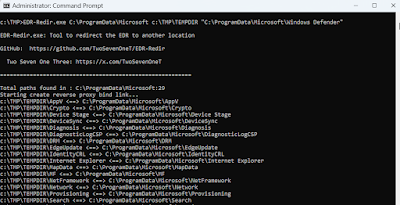
The execution of EDR-Redir provides console output detailing the bind links being created.
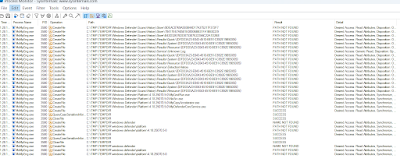
After successful redirection, Windows Defender perceives C:\TMP\TEMPDIR as the parent folder of its operating folder.
EDR-Redir Tool Exploits Bind Filter and Cloud Filter Driver
Cybersecurity researchers have introduced EDR-Redir, a tool designed to bypass Endpoint Detection and Response (EDR) systems by exploiting Windows' Bind Filter and Cloud Filter drivers. This method operates in user mode, eliminating the need for kernel privileges.

The Windows Bind Link feature, introduced in version 24H2, facilitates filesystem namespace redirection using virtual paths. The Bind Filter driver (bindflt.sys) manages this redirection transparently. This system offers virtual path mapping, transparent operation, security inheritance, and logical mapping without creating physical files.
How EDR-Redir Exploits System Vulnerabilities
EDR-Redir redirects folders containing EDR executable files to attacker-controlled locations, circumventing existing protections against symbolic link redirect attacks. The tool creates virtual paths pointing to real paths under attacker control, limiting operations to "OPEN" and "READ" functions.

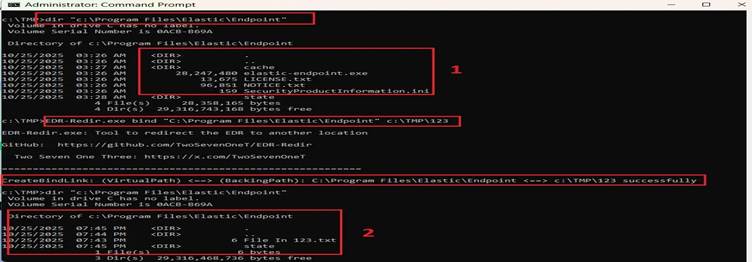
Experiments against commercial EDR solutions showed varying success. Windows Defender was resistant to the basic bind link approach, leading to the development of an alternative method using the Cloud Filter API. Elastic Defend and Sophos Intercept X demonstrated successful folder redirection.
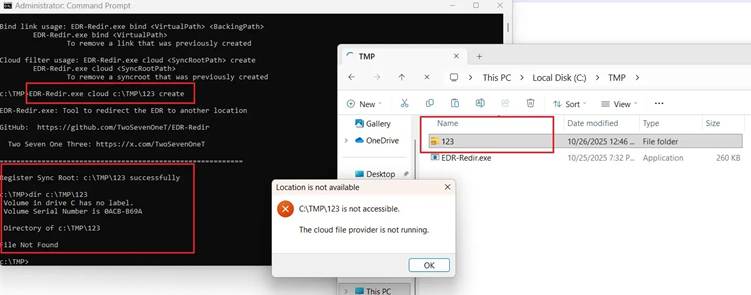
For resistant systems like Windows Defender, the Windows Cloud Filter API (CFAPI) is employed through the cldflt.sys driver.
This involves registering a sync root folder with minimal policies, corrupting the target folder and preventing EDR access to essential files. Cloud Filter method proves effective because sync root folders persist after system reboots.
Once attackers gain control over EDR folders, they can execute malicious activities, including DLL hijacking, placing executable files, or disabling EDR processes.
Defense against EDR-Redir requires EDR vendors to enhance protection mechanisms and implement monitoring for their installation folders.
Addressing False Positives/Negatives in Microsoft Defender for Endpoint
In endpoint protection, a false positive is a non-malicious entity identified as a threat, while a false negative is a malicious entity not detected. These can occur in any threat protection solution, including Defender for Endpoint.
When encountering a false positive, identify the detection source to determine the appropriate solution. The detection source can be Endpoint Detection and Response (EDR), Antivirus, or Custom TI. The detection source dictates the appropriate remediation steps. For example, alerts related to EDR require submitting the false positive to Microsoft or adding an EDR exclusion.
To manage alerts and reduce false positives, classify alerts in the Microsoft Defender portal as either True positive, Informational, expected activity, or False positive.
Review Remediation Actions
Remediation actions, include quarantining a file, removing a registry key, or stopping a process, are taken on entities detected as threats. If actions were taken due to false positives, most can be undone. For example, files can be restored from quarantine.
Define Exclusions
An exclusion is an exception to remediation actions, such as a file or URL. Excluded entities can still be detected, but no actions are taken. To define exclusions in Microsoft Defender for Endpoint, create "allow" indicators or define exclusions for Microsoft Defender Antivirus.
Endpoint detection and response in block mode
Endpoint detection and response (EDR) in block mode provides added protection when Microsoft Defender Antivirus is not the primary antivirus product and is running in passive mode. It remediates malicious artifacts detected by EDR capabilities that the primary antivirus might have missed.
When EDR in block mode is enabled, Defender for Endpoint remediates detected malicious artifacts, which are then listed as Blocked or Prevented in the Action center.
Enabling EDR in Block Mode
EDR in block mode can be enabled via the Microsoft Defender portal, Intune, or Group Policy). To enable using the Microsoft Defender portal:
- Go to the Microsoft Defender portal (https://security.microsoft.com/) and sign in.
- Choose Settings > Endpoints > General > Advanced features.
- Scroll down, and then turn on Enable EDR in block mode.
To create a custom policy in Intune, see Deploy OMA-URIs to target a CSP through Intune, and a comparison to on-premises.
To enable using Group Policy):
- On your Group Policy management computer, open the Group Policy Management Console).
- Right-click the Group Policy Object you want to configure, and then select Edit.
- In the Group Policy Management Editor go to Computer configuration and then select Administrative templates.
- Expand the tree to Windows components > Microsoft Defender Antivirus > Features.
- Double-click Enable EDR in block mode and set the option to Enabled.
- Select OK.
Requirements for EDR in Block Mode
Requirements for EDR in block mode include:
- Appropriate permissions.
- Supported Windows version.
- Microsoft Defender for Endpoint Plan 2 license.
- Microsoft Defender Antivirus installed and running in active or passive mode.
- Cloud-delivered protection enabled.
- Up-to-date Microsoft Defender Antivirus platform and engine.